
Performance Max spreads one budget across Search, Shopping, YouTube, Display, Discover, Gmail and Maps. Most of that is easy to follow. The display part is not: your ads end up on websites and in apps you never chose, and the campaign gives you very little to judge them by.
This guide covers what Google does show you, where to find it, and how to act on it. Everything here was checked against Google's own help pages in September 2026, and the exclusion limits and menu path were re-checked in October 2026. Google changes these menus often, so the exact labels in your account may drift.
The short answer, if that is all you came for: Performance Max has no per-campaign placement exclusions. The only control is the account-level list at Tools → Content suitability → Advanced settings → Excluded placements, and it applies to every campaign in the account at once. The full steps are below. Everything between here and there is about deciding what belongs on that list, which is the harder half.
What Performance Max tells you about placements
There are two reports, and they answer different questions.
| Placement report | Channel performance report | |
|---|---|---|
| Shows | Individual sites, apps, YouTube videos and Search partner sites | Search, Display Network, YouTube, Discover, Gmail, Maps, Search partners |
| Metrics | Impressions only | Impressions, clicks, conversions, conversion value, cost |
| Level | Per placement | Per channel |
So you can see where your ads ran, and you can see what each channel cost and returned. What you cannot see is the cost or the conversions of a single website. Google says as much: placement reports "shouldn't be used to evaluate performance" and "should be used as a brand safety tool". Search is not a placement at all and never appears in the report.
That changes how you audit. With a normal Display campaign you can sort by cost and start at the top. With Performance Max you judge placements by what they are and how many impressions they took, and you use the channel report to decide whether the display share is big enough to bother.
The report mixes three different problems
One export, three kinds of inventory, and they do not fail in the same way.
Websites and apps. Made-for-advertising sites, arbitrage domains, and apps where most of the taps were accidents. You judge these by what the page is built for: how much of it is ad slots, whether there is real writing between them, whether anybody is actually reading.
YouTube channels. A channel is not a website. There is no ad density to measure and no page to read. You judge it by what it publishes: recent titles, descriptions, and what the comment section looks like.
Search partner sites. These appear in the report and are not a lever. Search is not a placement, and a Performance Max campaign gives you no placement-level control over it.
Mixing the three is most of what makes a Performance Max audit feel unmanageable. Split the export by type before you judge anything, and each pile has an obvious next step instead of one undifferentiated list of two thousand rows.
Why the placement side goes unexamined
Most arguments about Performance Max are arguments about Search: whether brand terms are absorbing budget that would have converted anyway, and whether the reported return is flattering itself as a result. That argument is worth having, and it tends to have the advertiser's full attention.
Which is exactly why the display and YouTube side drifts. It is not a line item anyone defends in a meeting. The placement report carries no cost column, so nothing in it looks expensive. And the campaign keeps reporting one healthy blended number over the top of it. The money leaks where nobody is looking, not where everybody is arguing.
The blending is not a figure of speech, and it is worth doing the arithmetic. Performance Max reports one return across Search, Shopping, YouTube, Display, Discover, Gmail and Maps. Branded search sits inside that mix and converts at a rate no display placement will ever match, partly because a large share of those people were going to buy from you anyway. So the campaign's headline return is carrying a brand harvest on its back.
Put rough numbers on it. If brand queries take a fifth of the budget and return 15 to 1 on that fifth, they contribute 3 to the blended figure on their own. A campaign reporting an overall 4 is then earning roughly 1.25 on the remaining four fifths, which is where all the display and YouTube inventory lives. The campaign looks fine. Most of the budget is barely washing its face, and nothing in the headline number says so.
This is the reason to judge the display and YouTube side on the channel performance report rather than on the campaign total. That report does carry cost and conversions per channel, so it is the only place the surfaces can be separated. Doing that first is Step 1 below, and it is the step most audits skip.
Step 1: check whether display is worth your time
Open the channel performance report: Campaigns → Insights and reports → Channel performance, for the Performance Max campaign you care about.
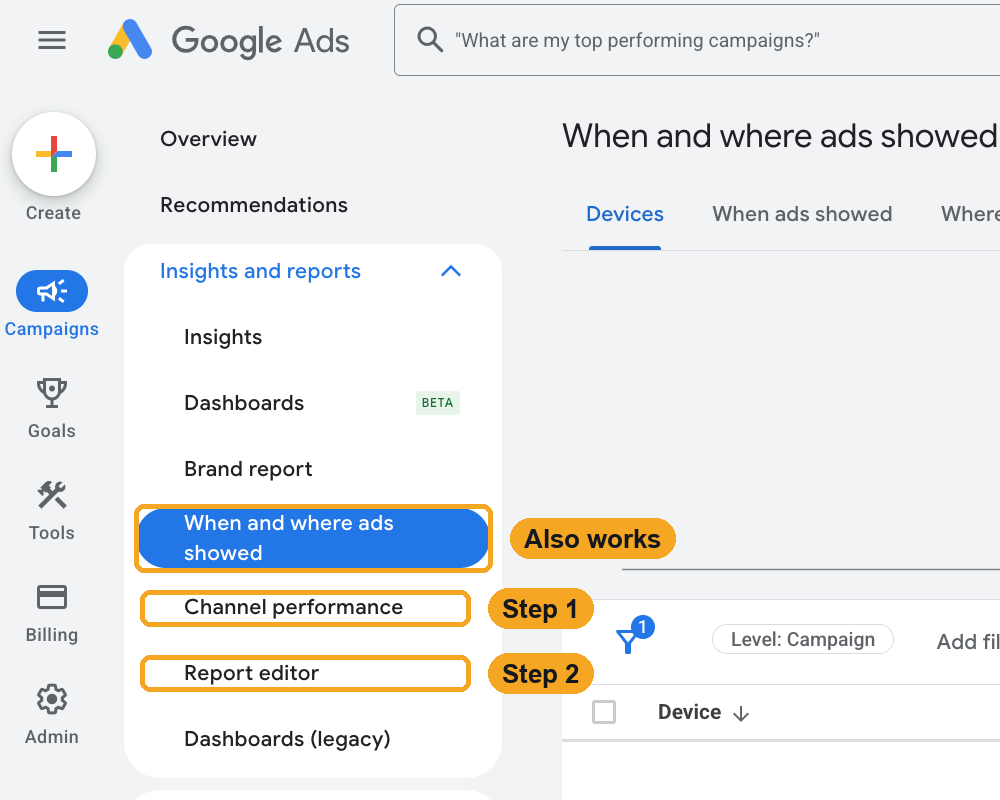
All three reports sit under Insights and reports in the Campaigns menu. Screenshot from September 2026.
Look at the Display Network row. If it is a few percent of cost, a placement audit is a low priority and your time is better spent elsewhere. If it is a fifth or a quarter of the budget, it deserves an afternoon, because that is money going to sites you have never reviewed.
Step 2: export the placement report
- Go to Campaigns → Insights and reports → Report editor.
- Open the predefined report Performance Max campaigns placement.
- Set the date range to the last 90 days. Shorter ranges hide the long tail.
- Download it as CSV or Excel.
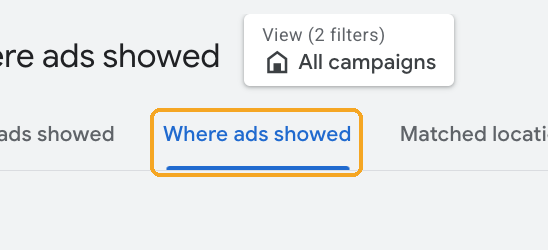
Google has also started showing Performance Max placements in the standard Where ads showed report (Insights and reports → When and where ads showed, then the Where ads showed tab). Either export works.
Step 3: read an impressions-only report
Without cost data, you are looking for patterns rather than expensive rows:
- Concentration. How many placements carry most of the impressions? The top of that list is where to look first.
- Type. How much sits in mobile apps? For many advertisers, app inventory is where accidental taps pile up.
- Names. Keyword-stuffed domains, unusual top-level domains and near-misspellings of real publishers are worth opening.
- Unknown volume. A domain you have never heard of that took a large share of impressions should be visited before anything else.
You can do this in a spreadsheet, or drop the file into our free placement exclusion list generator. It recognises a Performance Max report, ranks everything by impressions, shows how much went to apps, and flags suspicious names. The file is read in your browser and never uploaded.
Step 4: how to exclude placements in Performance Max
Performance Max has no self-serve placement exclusions per campaign. The control is the account-level exclusion list, which applies to every campaign in the account, Performance Max included.
- Go to Tools → Content suitability → Advanced settings.
- Open Excluded placements.
- Choose Enter multiple placements and paste your list, one domain per line.
A few details that matter:
- Limits. Up to 20,000 exclusions at a time and 65,000 per account. Manager accounts can build up to three shared lists of 250,000 each, which linked accounts inherit.
- Leave out the www. Google notes that excluding
www.example.comdoes not extend to other subdomains, so ads can still run onwww1.example.comorplacement.example.com. Enterexample.com, which covers the subdomains and pages beneath it. There is a second reason to enter the bare domain: Google states that exclusions for subdomains, subsites and subpages do not work at all on the Search Partner Network, which Performance Max also buys. - It is account-wide. Every campaign inherits the list, so check that nothing on it is a site another campaign genuinely needs, a publisher you sponsor for example.
For the full walkthrough of account-level lists, including how to build one from scratch, see the complete guide to account-level exclusions.
Excluding mobile apps from Performance Max
Apps deserve their own decision. For many advertisers, especially outside gaming and app installs, in-app display is the lowest-intent inventory there is: small screens, ads placed next to buttons, and children's games. For some advertisers apps convert perfectly well, so check the channel report and your own conversion data before excluding everything.
If apps are not working for you:
- Open the account-level exclusion settings.
- Find the app categories option.
- Select every category under Apple App Store and under Google Play. There are well over a hundred, and it is a lot of clicking.
The old shortcut, excluding mobileappcategory::69500 to block all apps in one go, does not work at account level. Practitioners who tried it report an error message, which is why the category route is the one that sticks.
Two cautions. Google does not promise that every app impression is caught, so check the placement report again after a few weeks. And if you only want to remove specific apps from a Display campaign, Google's format is mobileapp::2- followed by the Android package name, or mobileapp::1- followed by the App Store ID.
A check you can run this week
- Channel performance report: note the Display Network share of cost.
- Export the Performance Max placement report for 90 days.
- Run it through the free generator and note the app share.
- Open the twenty most-seen domains you do not recognise.
- Add the ones you would never have chosen to the account-level list, and decide on apps.
- Put a reminder in for next month. New junk sites appear constantly, and a list that is never revisited decays.
Questions people ask
How do I exclude placements in Performance Max?
Through the account-level exclusion list, under Tools → Content suitability → Advanced settings → Excluded placements. Paste your domains one per line, without the www.. The list applies to every campaign in the account, Performance Max included.
Why can't I exclude placements for one Performance Max campaign only?
Because Google does not offer it. Content suitability settings and placement exclusions are account-level controls, and Performance Max has no self-serve per-campaign placement exclusion. If one campaign needs a different list, the only clean separation is a different account.
How do I see which placements Performance Max used?
Campaigns → Insights and reports → Report editor, then the predefined report Performance Max campaigns placement. The same placements now also appear under When and where ads showed → Where ads showed. Export at least 90 days, because shorter windows hide the long tail.
Can I see cost or conversions for a single placement?
No. The placement report carries impressions and nothing else, and Google states it should not be used to judge performance. For money you use the channel performance report, which gives cost and conversions per channel (Display, YouTube, Search and so on) but never per website.
Where this runs out
An impressions-only report can tell you where your ads ran, but not which of those sites are made for advertising, stuffed with ads or buying their traffic. Answering that means visiting and scoring each site, which is what DisplayGG does, with 100 free credits and no card. If you would rather hand it over, send us the report and we audit your top 100 placements for free.
Excluded something that keeps appearing anyway? The troubleshooting checklist covers the usual causes, starting with identifier type and the www. trap.
Running Demand Gen as well? The same account-level list protects it, and there is a separate guide to Demand Gen placements. For YouTube channels, which follow partly different rules, see YouTube exclusion lists.
Sources (Google Ads Help): Placement reports for Performance Max · Channel performance report · Account-level placement exclusions · Brand suitability in Performance Max · Exclude specific webpages and videos